04 Create a Pivot Table and Pivot Chart from Cleaned Data
In this video, we'll turn our cleaned Google Forms data into professional reports using Excel PivotTables and PivotCharts. You'll learn how to quickly summarise your data, customise your reports and create charts that automatically update when new form responses are added. In this video you'll learn how to: Create PivotTables from your cleaned Google Forms data Summarise responses by date and department Create PivotCharts to visualise your data Prevent PivotTable column widths from changing after a refresh Customise field names and report headings Create a chart showing safety helmets by colour Apply custom chart colours to match your data Build reports that are easy to refresh as new responses are received By the end of this tutorial, you'll have professional Excel reports that automatically summarise your Google Forms data and are ready to share with colleagues or management. This video is part of the Business Process Automation series, where we build a complete business solution using Google Forms, Google Sheets, Excel and Power BI. In the next video, we'll recreate these reports in Power BI and discover how interactive dashboards can take your reporting to the next level. 👍 If you found this video helpful, please Like and Subscribe for more practical Microsoft Office and business productivity tutorials. Professional skills. Delivered clearly. #Excel #PivotTables #PivotCharts #GoogleForms #GoogleSheets #BusinessAutomation #PowerBI #DataAnalysis #BusinessReporting #ClearwaterITTraining


How to Create Pivot Table in Excel

Stop Sending Ugly Pivot Tables to Your Boss

Excel for Finance and Accounting Full Course Tutorial (3+ Hours)
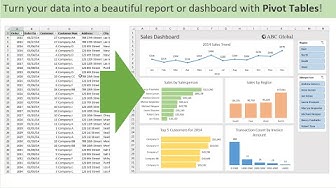
Introduction to Pivot Tables, Charts, and Dashboards in Excel (Part 1)

Learn Power BI in Under 3 Hours | Formatting, Visualizations, Dashboards + Full Project

Excel vs Power BI vs SQL vs Python | Restaurant Price History Lookup

The Excel Gantt Chart That Replaces Your Project Management Tool

Customize Excel Tabs with: Icons, Colors, and a Navigation Menu

Make an Interactive Excel Dashboard in 4 Simple Steps!

Unbelievable Smart Worker & Hilarious Fails | Construction Compilation #1 #adamrose #smartworkers

Build a Dynamic Excel Report from Scratch (Even If You're a Beginner)
![PINK & ORANGE GRADIENT IN HD [3 HOURS]](https://i.ytimg.com/vi/6ih8zppfQSQ/hqdefault.jpg?sqp=-oaymwE9CNACELwBSFryq4qpAy8IARUAAAAAGAElAADIQj0AgKJDeAHwAQH4Af4JgALQBYoCDAgAEAEYfyAsKBMwDw==&rs=AOn4CLDvw6mQM98bfl572zfE7r4GdUG8dg)
PINK & ORANGE GRADIENT IN HD [3 HOURS]

See How a 453kg Giant Bluefin Tuna Is Flawlessly Carved in Seconds

The most ridiculous worker fails caught on camera

8 Tiny Excel Symbols That Replace Messy Formulas

Johnny Depp Movie Bloopers That Made Filming IMPOSSIBLE!

I don’t write formulas in Excel anymore, I do this instead

Power BI FULL COURSE for Beginners | Learn Dashboards & Reports Fast!

Build an Excel Mini Dashboard with One Function (yes, it’s real)
